
iPhone Stuck on Apple Logo and Won’t Turn On? Easy Fixes
iPhone stuck on Apple logo can leave you feeling stuck right along with it. This issue sometimes appears after an update, a restore attempt, or even during normal use. Whether the iPhone won’t turn on properly is caused by a software glitch or a failed system process, there are several methods you can try to bring your iPhone back to life. This guide shows the most effective solutions about how to fix iPhone stuck on Apple logo, including simple fixes and using an iOS system repair tool.
Table of Content
Why Is My iPhone Stuck on the Apple Logo?
There are several common reasons why your iPhone is stuck on the Apple logo screen:
- A failed or interrupted iOS update
- Problems during a restore or data transfer
- Software crashes or system glitches
- Jailbreak attempts that did not complete properly
- Insufficient storage or corrupted files
In most cases, this is a software-related issue rather than a hardware failure, which means you can often fix it yourself with the right approach.
Quick Checks Before Fixing the Issue
Before trying more advanced solutions, it helps to rule out simple causes:
- Make sure your iPhone has enough battery power
- Connect it to a charger and wait a few minutes
- Check for any physical damage or water exposure
- Try using a different charging cable or adapter
If the problem persists after these checks, move on to the methods below.
How to Fix iPhone Stuck on Apple Logo and Won’t Turn On
Method 1: Force Restart Your iPhone
A force restart is the quickest way to resolve minor system glitches. It refreshes the system without deleting any data and can often fix temporary issues.
Steps:
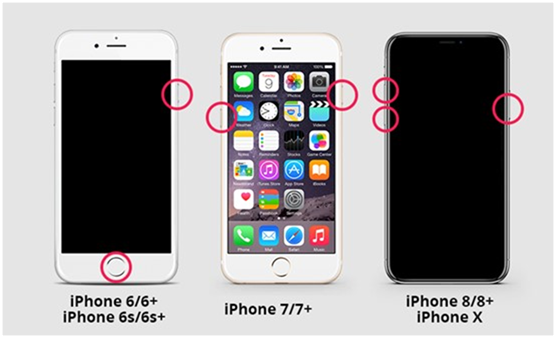
- For iPhone 8 or later: quickly press and release the Volume Up button, then the Volume Down button. Press and hold the Side button until the Apple logo appears again.
- For iPhone 7 and 7 Plus: press and hold the Volume Down and Power buttons together until the Apple logo appears.
- For older models: hold the Home and Power buttons at the same time until the Apple logo appears.
If your iPhone restarts normally, the issue was likely a temporary glitch.
Method 2: Use an iOS System Repair Tool (No Data Loss)
If a force restart does not work, a dedicated iOS system repair tool is often the most reliable and hassle-free option. A tool like TunesKit iOS System Recovery is designed to fix iOS system errors without erasing your data. It provides a guided process, making it suitable even for users without technical experience.
Key benefits:
- Fixes over 150 iOS system issues without data loss, like iPhone green screen, iPhone stuck in recovery mode
- Supports the latest iPhone models and iOS versions
- Versatile features including upgrade and downgrade iOS versions, factory rest iPhone without passcode, etc.
- Provide two recovery modes: Standard Repair (no data loss) and Deep Repair (fix serious issues) for a comprehensive fix
- Easy to follow step-by-step instructions and a user-friendly process
Steps to use TunesKit iOS System Recovery:
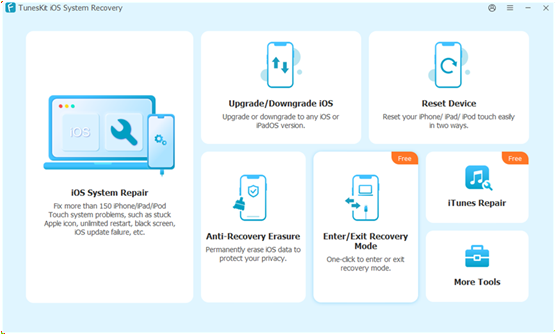
- Download and install TunesKit iOS System Recovery on your computer. Launch the program and connect your iPhone using a USB cable. Choose iOS System Repair.
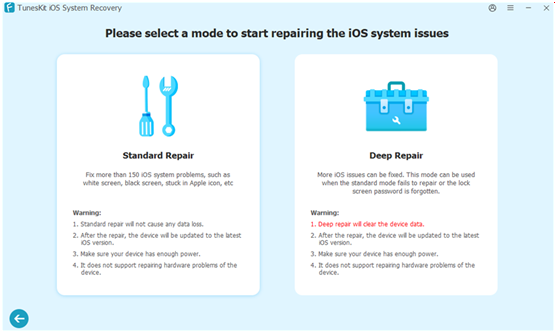
2. Click Start to proceed. Select the Standard Repair mode, which is designed to fix issues without deleting data.
3. Confirm your device information and download the appropriate firmware package. Once the download is complete, click Start Standard Repair to begin fixing your iPhone.
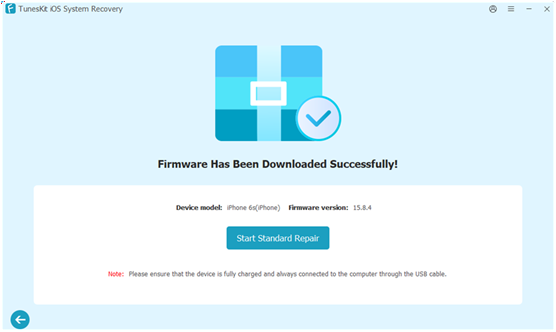
After the repair process finishes, your iPhone should restart normally without losing your data. If Standard Repair doesn’t work, switch to Deep Repair. Make sure you have a backup for this process will erase your iPhone.
Method 3: Update or Restore iPhone via iTunes or Finder
If the system is severely affected, updating or restoring your iPhone using iTunes or Finder can help. This method reinstalls the operating system and can fix most software issues.
Steps:
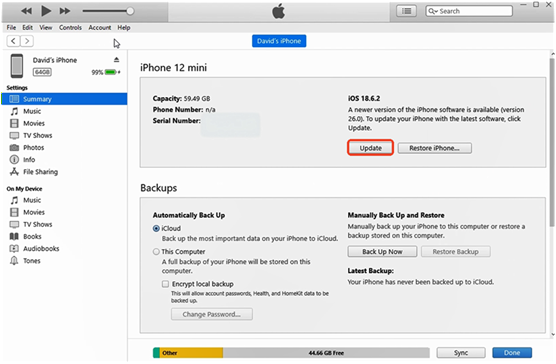
- Connect your iPhone to a computer and open iTunes or Finder.
- When the device was detected, click the phone icon.
- Choose Update to reinstall iOS without erasing data. If that does not work, choose Restore iPhone to perform a full reset.
- Wait for the process to complete. Your iPhone will restart after installation.
Method 4: Put iPhone into Recovery Mode
Recovery Mode allows your iPhone to communicate with a computer and reinstall the system when it gets stuck on Apple logo. This method is helpful when the device can’t be detected normally by iTunes or Finder.
Steps:
- Connect your iPhone to a computer and open iTunes or Finder.
- Use the correct button combination to enter Recovery Mode based on your model.
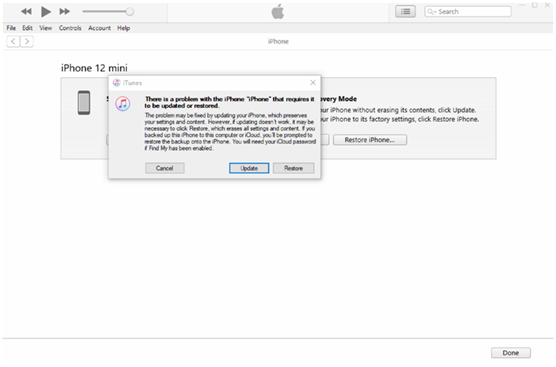
- Once the recovery screen appears, your computer will detect the device and a prompt will pop up.
- Choose Update or Restore depending on your needs and follow the instructions.
This method is effective but may take some time, especially if firmware needs to be downloaded.
Method 5: Use DFU Mode to Restore iPhone
DFU Mode is the most advanced solution and works at a deeper system level than Recovery Mode. It completely reloads the firmware and software, which can fix more stubborn issues.
Steps:
- Connect your iPhone to a computer and open iTunes or Finder.
- Put your device into DFU Mode using the correct button sequence for your model. The screen will remain black if done correctly.
- iTunes or Finder will detect the device in recovery mode.
- Click Restore to reinstall the system and wait for the process to complete.
This method has a high success rate but will erase all data on your device.
FAQs About iPhone Stuck on Apple Logo
Will fixing iPhone stuck on Apple logo erase my data?
It depends on the method you choose. A force restart and system repair tools in standard mode usually keep your data intact. Methods like restore or DFU mode will erase all data.
How to fix an iPhone stuck on Apple logo with loading bar?
This often happens during an update. Wait for a while to see if it completes. If it does not progress, try a force restart or use a system repair tool to fix the issue safely.
Can I fix iPhone stuck on Apple logo without a computer?
You can try a force restart without a computer. However, most advanced fixes, including system repair and restore methods, require a computer.
Summary
An iPhone stuck on the Apple logo won’t turn on may seem serious, but in most cases, it can be resolved with the right steps. Starting with simple fixes like a force restart and moving to more advanced solutions, such as system repair tools or DFU mode, can help you identify and solve the problem effectively.For users who want a reliable and user-friendly option, using a tool like TunesKit iOS System Recovery can save time and effort while keeping your data safe.